01 After a screenshot
Detect Screenshots
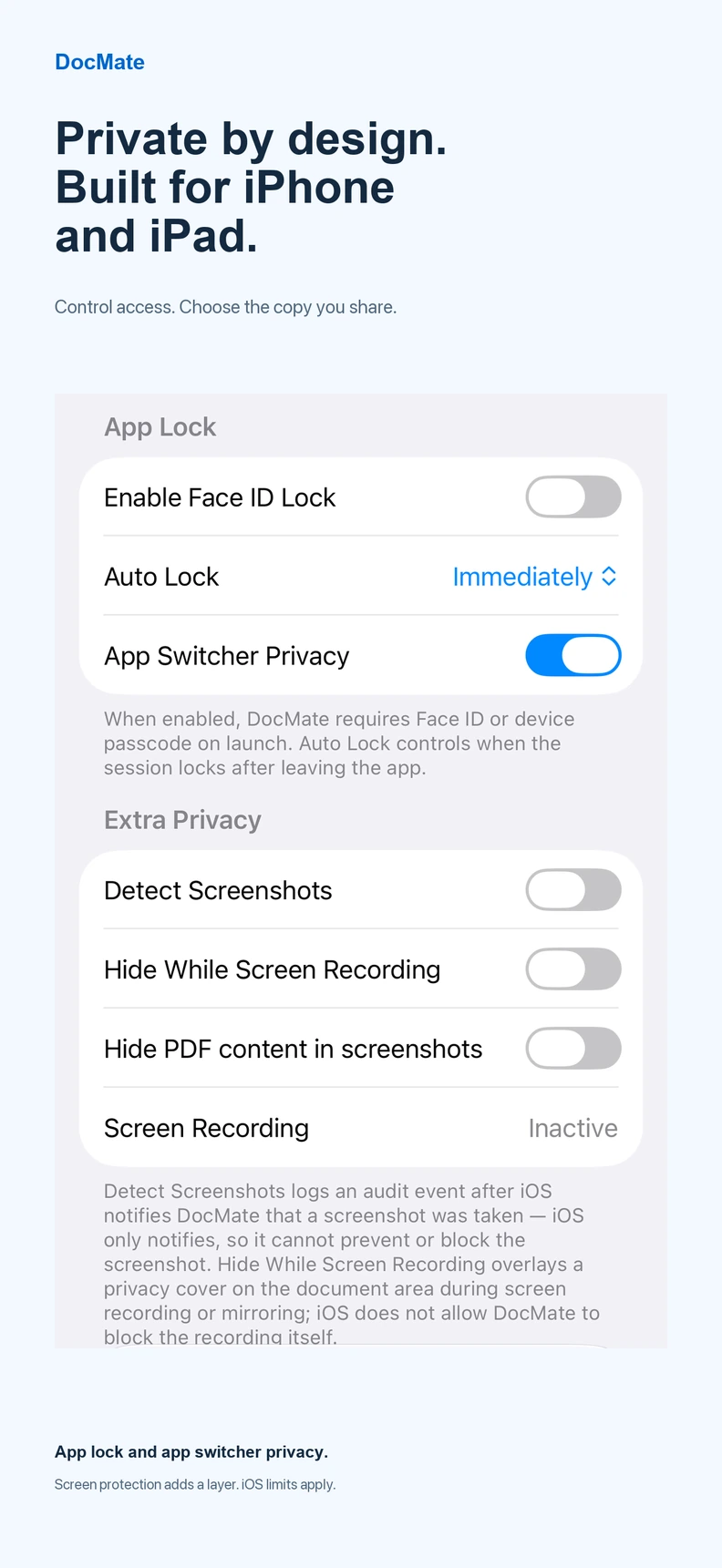
Opt in to record a local audit event when iOS reports that a screenshot was taken. This notification arrives after capture, so it cannot stop or erase the screenshot.
It is not a screenshot-blocking switch.
Private document workflows · iPhone + iPad
A contract, bank statement or personal document can be sensitive before you ever export it. DocMate 1.1 gives you optional controls for screenshots, active screen recording and PDF previews. Here is what those controls actually do—and what they do not promise.
Choose your protection
01 After a screenshot
Opt in to record a local audit event when iOS reports that a screenshot was taken. This notification arrives after capture, so it cannot stop or erase the screenshot.
It is not a screenshot-blocking switch.
02 During screen recording
Opt in to cover sensitive content after iOS reports that the display is being recorded or mirrored. It is designed to reduce exposure on a captured screen, not to turn off the operating system’s recording feature.
Capture detection and cover timing depend on iOS; do not assume every first frame or capture route is protected.
03 When viewing PDF pages
Opt in to a special PDF preview rendering mode intended to keep the document body out of supported hardware screenshots. It does not hide every piece of surrounding UI such as metadata, filenames, toolbars or other app surfaces.
This behavior uses an iOS secure-rendering technique, not an Apple-guaranteed public screenshot-prevention API. Test it on your actual device and OS before relying on it.
A separate in-app access control
From a document’s menu in DocMate, choose Lock Document. Locking and unlocking require Face ID or your device passcode through iOS authentication. Protected previews are withheld from the library until access is authorized, and the access permission is limited to the current foreground session.
Scope: This is a lock inside DocMate, not a new password encrypted into the PDF file itself. Filenames or other limited metadata may remain visible; already exported or shared copies are not retroactively protected. The separate App Lock, folder locks and screenshot/recording settings serve different purposes.
An important distinction
Apple's official screenshot notification is sent after the screenshot. Recording state lets an app react to capture, but does not give it control over the system recording button. And there is no documented iOS public API that universally blocks screenshots of arbitrary app content.
These features apply only within supported DocMate views and settings. They cannot stop a second camera filming your phone, and they do not protect PDF copies you export or share with other apps or people. For sensitive documents, keep sharing access and the recipient’s handling in mind too.
Relevant platform references: Apple screenshot notification and capture-state changes.
How to try it responsibly
This guide describes the controls included in public DocMate 1.1.0. It is not a security certification or a promise of equal behavior on every iOS/iPadOS release.
Documents deserve a second thought
DocMate brings document processing, version review and optional privacy controls into one iPhone/iPad workflow. Download free; advanced PDF workflows may require Pro.